Mzigo Mpya: How to Add a New Stock Delivery to Your Shop's Inventory System in Tanzania

Saturday morning, a new delivery lands at the shop — some items you've never stocked before, some are just more of what's already on the shelf. The sale you make an hour later depends on what happens next: does someone type the new stock into the system correctly, or does it sit as a mental note until the shelf runs dry and nobody knows why the report still shows stock you don't have? This is the exact moment most small-shop inventory tracking quietly falls apart — and it's completely avoidable with the right two-minute habit.
Why "just count what's on the shelf" doesn't work
A shop running on memory and a notebook can only ever be as accurate as the last time someone actually counted. The moment a delivery arrives and doesn't get entered the same day, every report downstream — stock-on-hand, low-stock alerts, even what shows up at the till — starts drifting from reality. Multiply that across a shop with hundreds of SKUs and multiple brands, and "close enough" stops being close at all.
A proper POS/inventory system fixes this the moment a delivery is recorded correctly — but "correctly" depends on one distinction most guides skip: a new item and a re-order are not the same operation, and mixing them up is the single most common mistake.
New items vs. re-ordered items
Every delivery is really two different jobs stitched together:
- Brand-new items — something you've never sold before. The system has no record of it at all, so it needs a real product entry (name, unit, prices, and ideally a barcode) before any stock quantity means anything.
- Re-ordered items — more of something you already sell. The product already exists; you only need the quantity on hand to go up.
Skip creating the new item first, and either the delivery has nowhere to go, or — worse — someone quietly reuses an unrelated existing item's record just to get a number in somewhere, corrupting that item's history too.

Step 1 — Create any brand-new items first
For each item in the delivery that's genuinely new to your catalog: Items → + New Item, set it as a Product, give it a Unit of Measure, a Selling Price and a Cost Price, and — if you want it scannable at the till — a Barcode. If the delivery includes multiple brands (common in shoe and apparel shops), record the Brand too; it makes the catalog searchable by brand later, not just by name.
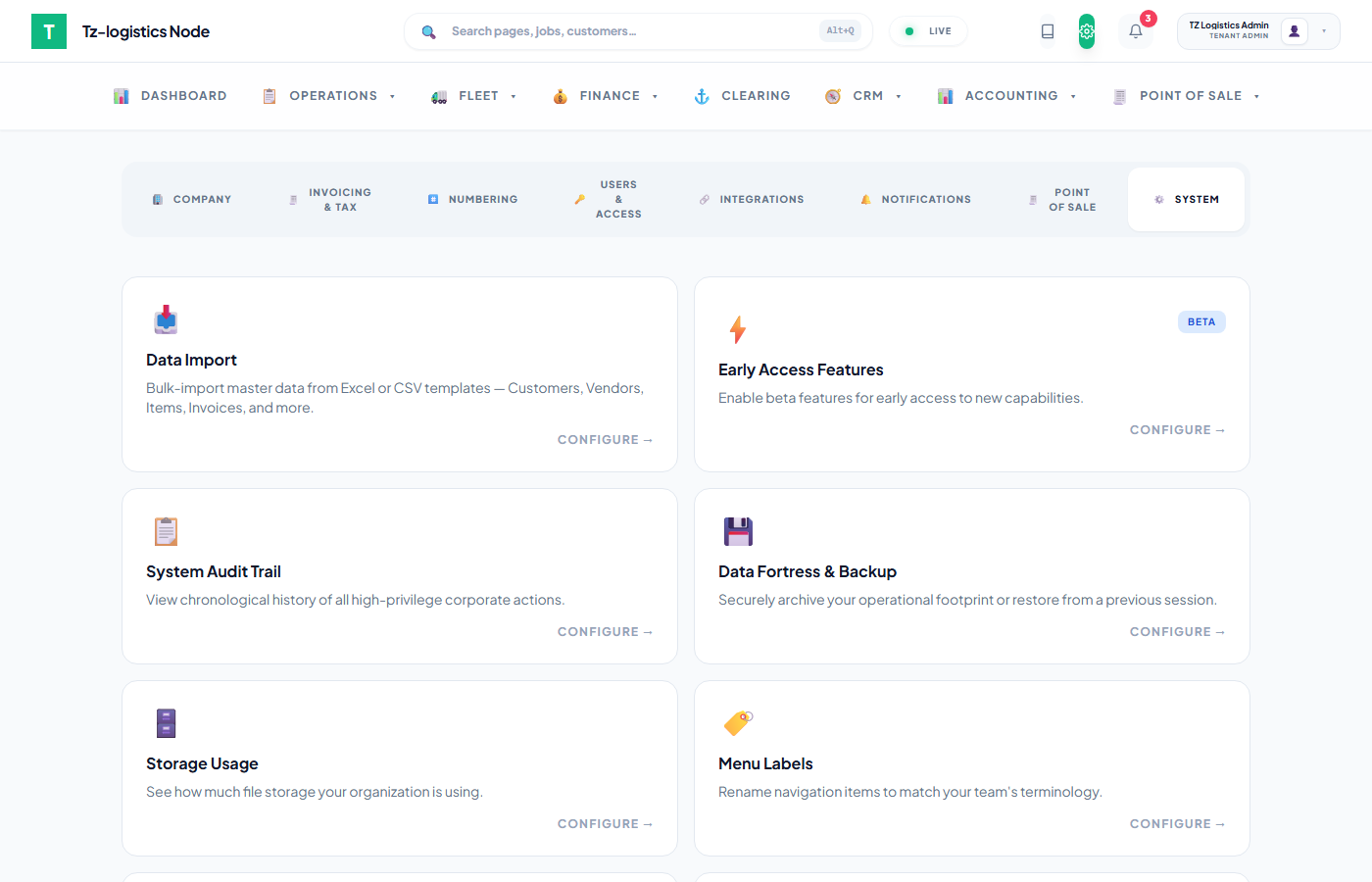
If it's a handful of new items, this takes a minute each. If a single delivery brings in dozens of new SKUs at once — a common case when a shop adds a new brand or product line — importing them as a spreadsheet (Settings → System → Data Import → Items) is far faster than typing each one by hand, and it validates every row before anything is saved.
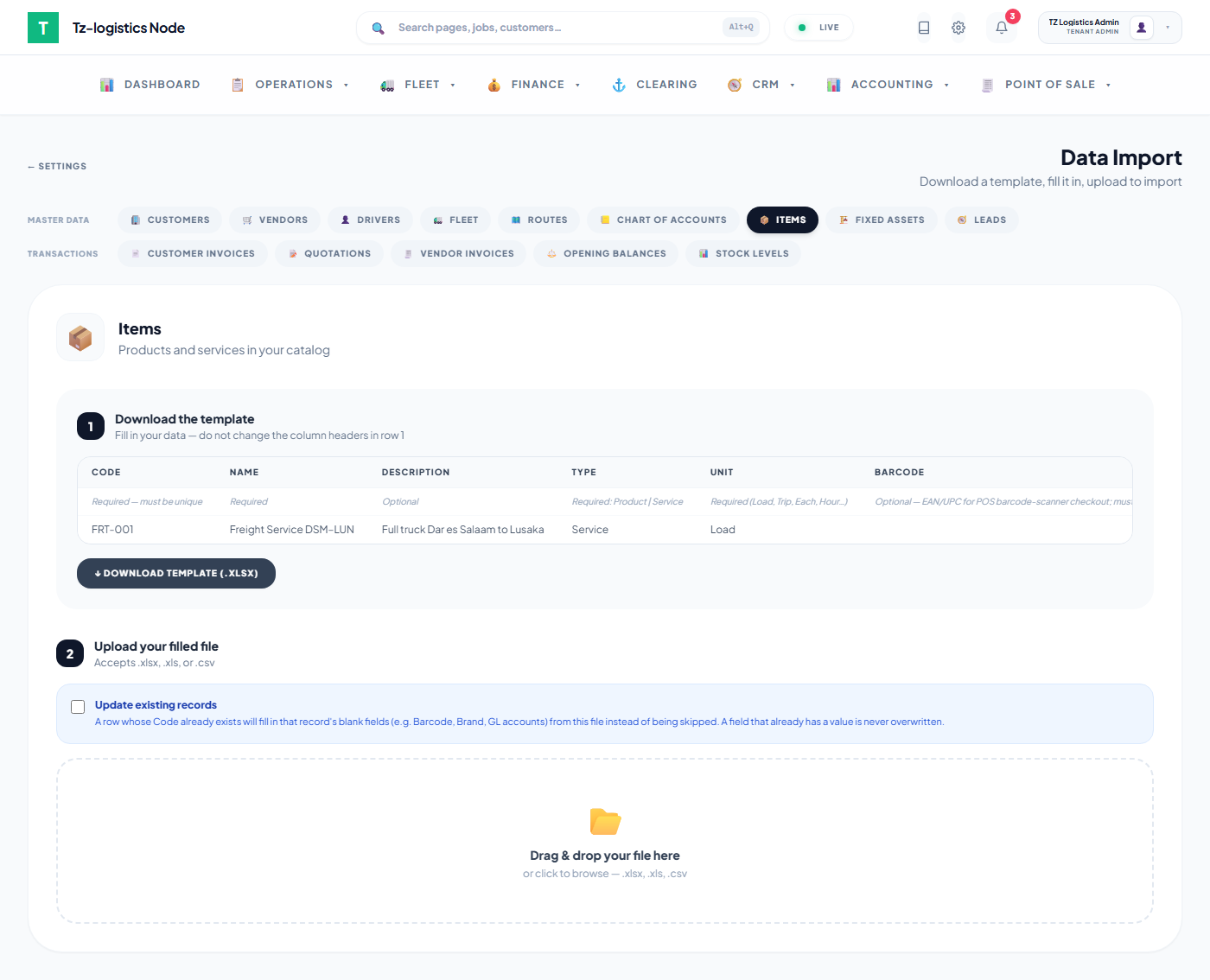
Download the template, fill in one row per item, and upload it — Data Import validates every row (a bad GL account number, a duplicate barcode, a missing required field) before anything is saved, and shows you exactly which rows failed and why. If you're re-importing to fill in gaps on items that already exist — say, backfilling Barcode or Brand on a catalog you loaded before those columns existed — tick Update existing records first: it fills in a matching item's blank fields from the file without ever overwriting a value that's already set.
Step 2 — Record the delivery as a Purchase Invoice (the part most shops skip)
This is the step that actually pays for itself. Recording the delivery as a Purchase Invoice — a vendor bill — does two things in one action instead of two separate manual steps:

- Go to Purchasing → + New Bill, pick the vendor, and enter the date and the supplier's own delivery note or invoice number if you have one.
- For every line — the new items you just created and the re-ordered ones — use the catalog picker to select the item from your product list, rather than typing a description freehand. This one detail matters more than it looks: only a line properly linked to a catalog item triggers a stock update. A typed-in line item is treated as a note, not a stock movement.
- Enter the quantity received and the price actually paid this time (which can differ from the item's stored cost price if your supplier's rates moved).
- Save as Draft, then Approve.
The moment the bill is approved, stock goes up for every product line automatically — no separate stock-entry step needed — and, if your accounts are set up, the amount owed to the supplier posts to the ledger at the same time. You get an accurate shelf count and an accurate payable in one action, and a paper trail for both if a number is ever questioned later.
No formal bill? Update stock directly
Not every delivery comes with a bill worth tracking — an informal supplier, a small top-up, or stock you're just correcting after a physical count. For those cases, skip Purchasing entirely and go straight to the stock ledger:
- A few items — Stock Movement → + Adjust Stock, pick the item, enter the quantity received as a positive number, and give a short reason (this is required, and it's what makes the audit trail useful later — "Mzigo mpya, [supplier], [date]" is enough).
- Many items at once — Settings → System → Data Import → Stock Levels, download the template, fill one row per item, and upload. This is the faster route for a large delivery with no bill attached, or for an initial stocktake when a new store opens.
The mistake that causes the most support questions
By far the most common issue isn't a missing feature — it's a purchase invoice line typed by hand instead of picked from the catalog. It looks identical on the bill itself, prints and totals correctly, and only shows its cost weeks later when someone asks why an item that was clearly restocked still shows the old, lower quantity on the shelf report. If a delivery's stock doesn't reflect on the till after approving a bill, this is the first thing to check.
Why this is worth the extra two minutes
An accurate stock-on-hand figure isn't just a nice-to-have report — it's what stops a cashier from selling an item that's actually out, what tells you which fast-moving lines need reordering before they run out, and, once your VAT and accounting settings are configured correctly, what keeps your financial reports and your actual shelves telling the same story. The habit costs two minutes per delivery. The alternative costs a lot more time reconciling a stock count that stopped matching reality weeks ago.
Related reading
- Items & Product Catalog → — full field reference for creating products
- Purchase Invoices (Vendor Bills) → — the full approval/payment lifecycle, WHT, and AP Aging
- Data Import & Onboarding → — bulk-loading items and stock levels from a spreadsheet
- Point of Sale Guide → — day-to-day cashier and manager workflows