Who Owes You, and Since When? Customer Statements and Ledger Entries for Tanzanian Businesses

"Please send us a statement." Every finance team hears it, from customers checking what they owe and from suppliers chasing what you owe them. Without the right tools, answering means hunting through invoices, payments and credit notes, adding them up by hand, and hoping nothing was missed.
eSecured ERP now keeps that answer ready at all times: every customer and supplier has a full list of ledger entries, and every customer has a statement you can print, save as PDF or send on WhatsApp.

Ledger entries: one line per document
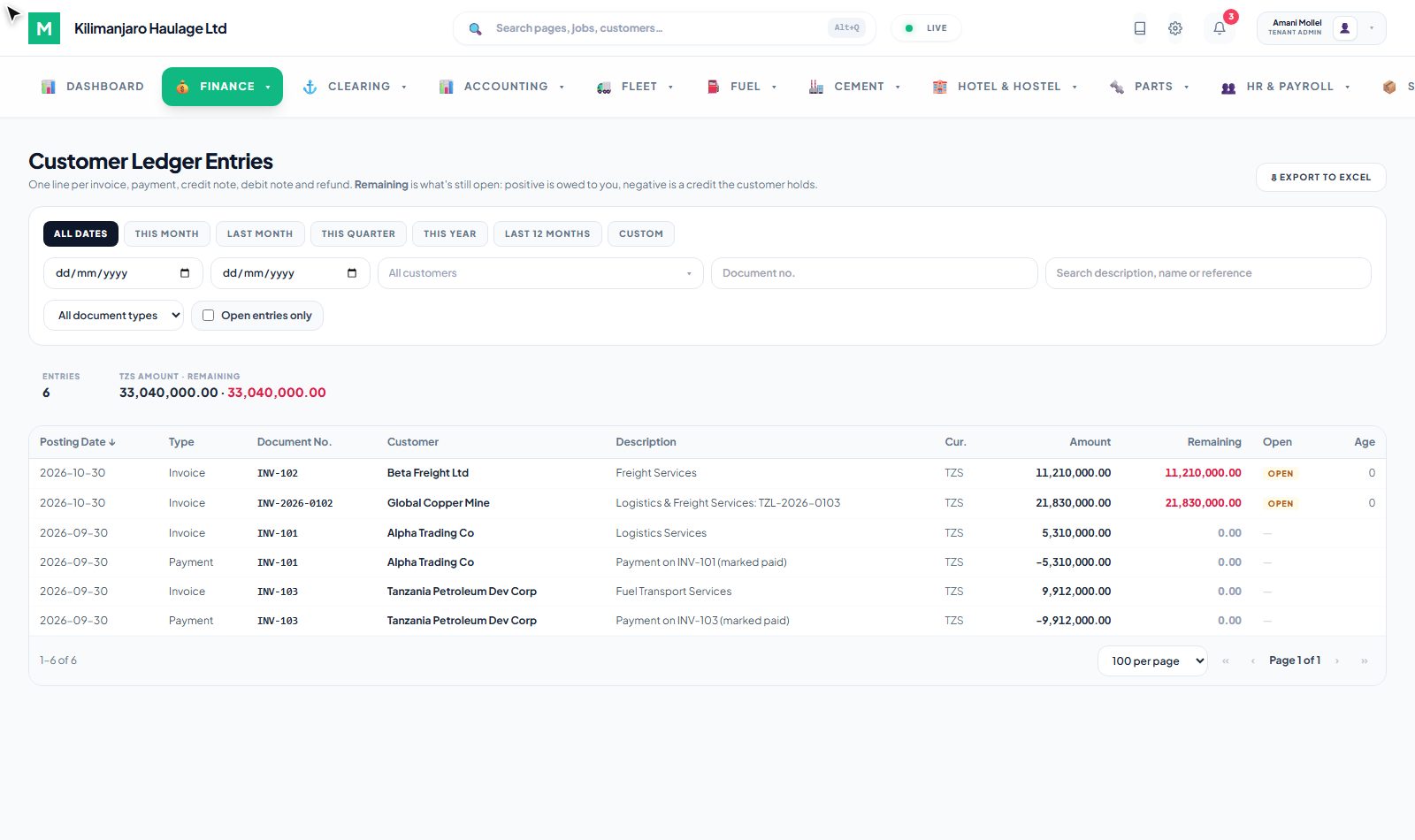
Finance → Customer Ledger Entries lists every customer's invoices, payments, credit notes, debit notes and refunds, one line per document, newest first. For each line you see:
- the amount, and what is still Remaining (positive is owed to you, negative is a credit the customer holds)
- whether it is Open, and how many days it is Overdue
- the customer, the document number and a description
Filter by date (this month, last quarter, this year, or any range), by customer, document number or type, or show only open entries. Totals update as you filter, the page handles thousands of lines with paging, and Export to Excel downloads exactly what you filtered. Click a line to open the invoice or payment behind it.
The same for suppliers
Vendor Ledger Entries does the same for what you owe: every bill and payment per supplier, what is still open and which bills are overdue, including the fuel stations you pay against Fuel LPOs.
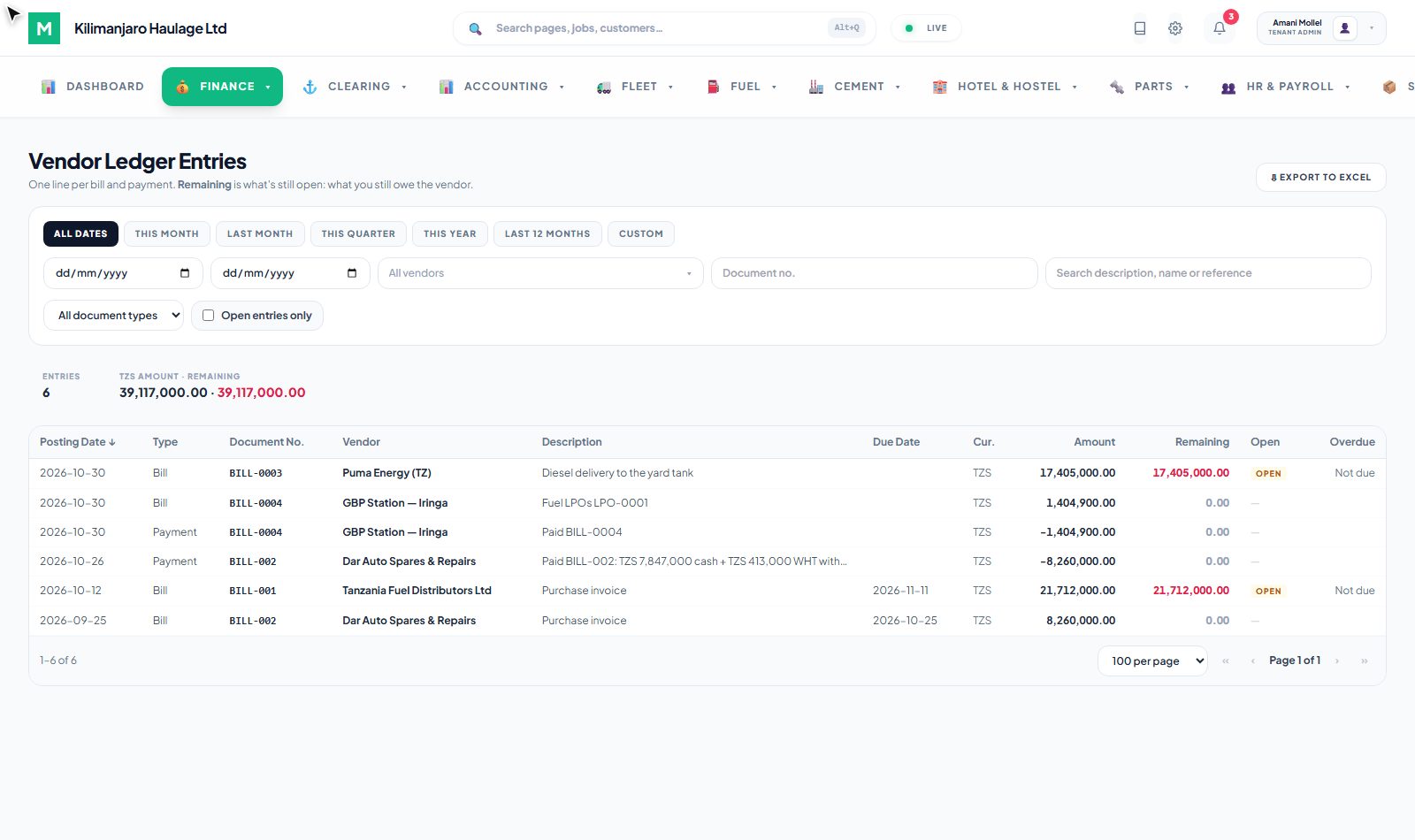
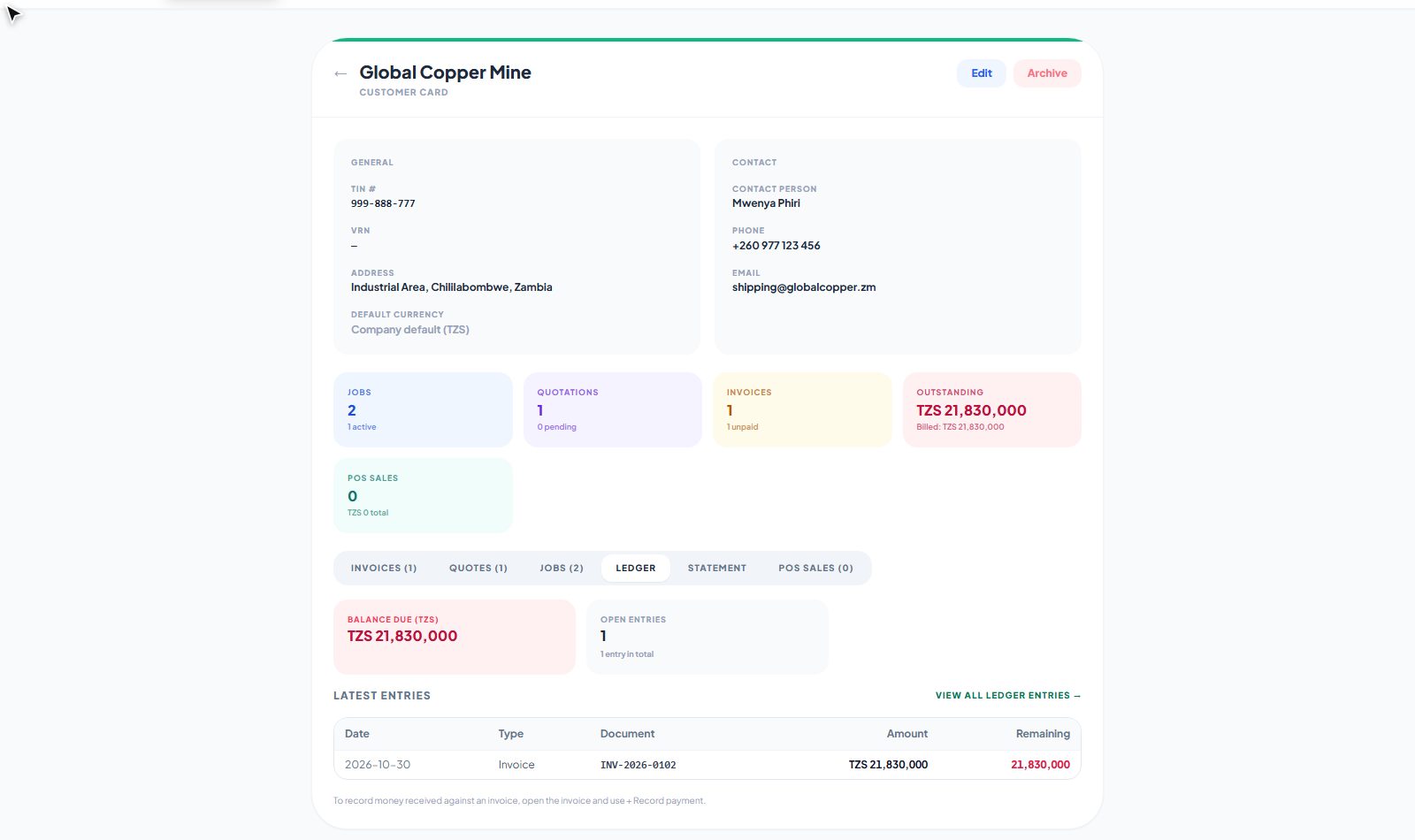
Both pages are in the Finance menu and in Accounting, next to GL Entries, and you can jump to them from the search bar (Ctrl+K). On each customer and supplier card, the Ledger tab keeps a short summary (the balance, open entries and the latest five lines) with View all ledger entries →.
The customer statement
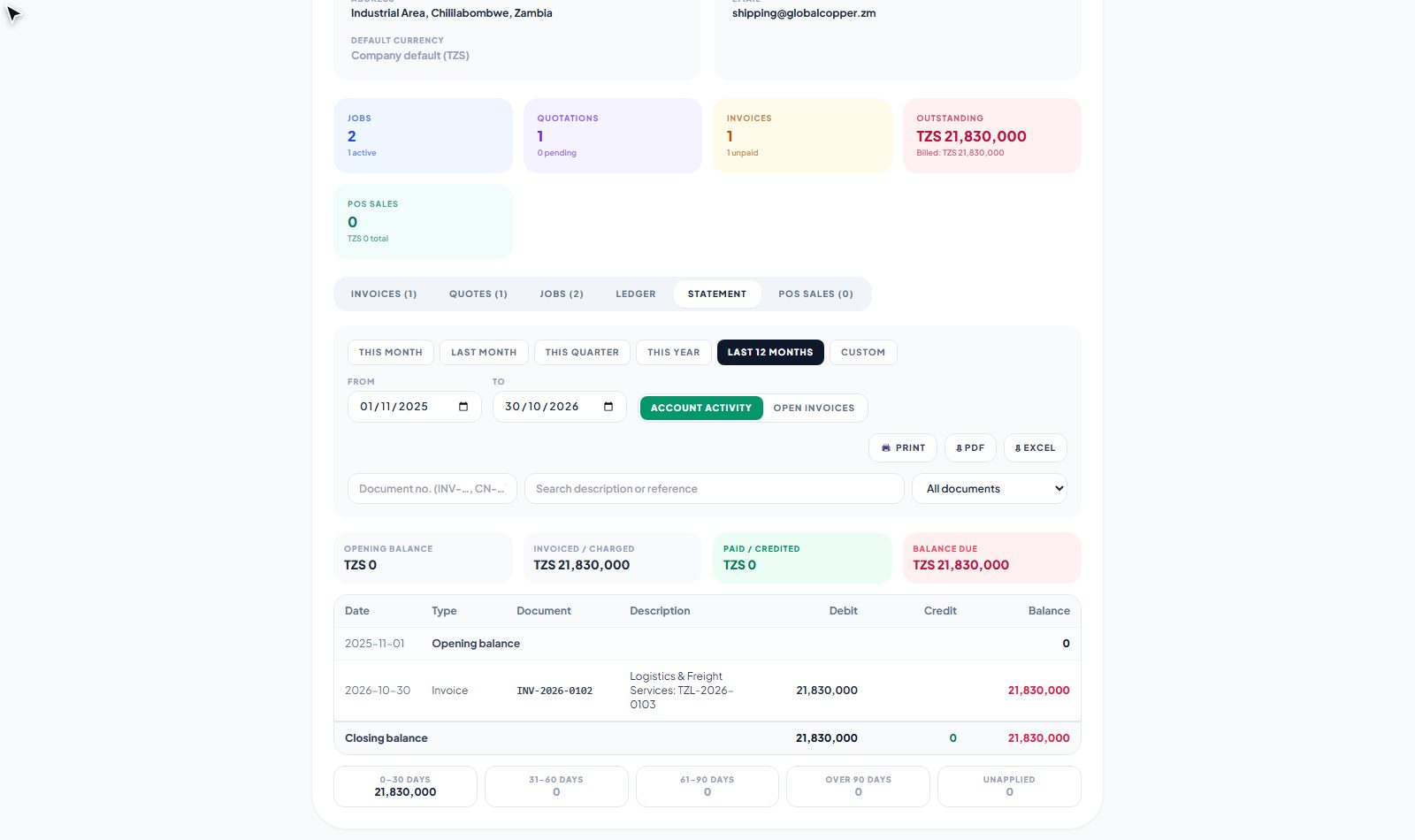
On the customer card, the Statement tab turns the same entries into the statement your customer expects:
- pick the period: this month, last month, this quarter, this year, the last 12 months or your own dates
- Account activity shows the opening balance, every invoice, payment and note in the period, and the closing balance; Open invoices shows only what is still unpaid
- an aging line shows what is current and what is 31–60, 61–90 and over 90 days overdue, with any unapplied credit
- a customer billed in more than one currency gets one section per currency, each with its own balance
Then Print, save as PDF, export to Excel, or send it straight to the customer on WhatsApp.
Why it matters
- Faster collections. Sending a statement takes seconds, so you can send them every month, not only when someone asks.
- Fewer disputes. The customer sees the same lines you see, with document numbers they can match against their own records.
- No double counting. Draft invoices are not counted as owed, and voided invoices and anything paid on them drop out everywhere at once.
- One version of the truth. The ledger entries, the statement, the customer balance and the aging all come from the same records.
Who can see it
Customer Ledger Entries and statements need View Invoices; Vendor Ledger Entries needs View Purchase Invoices. Give them to your accountant and finance staff in Settings → Users & Access.
Related reading
- Customers documentation →: the customer card, ledger entries and statement
- Vendors →: Vendor Ledger Entries
- Invoicing →: invoices, payments, credit and debit notes